Strategy
Webflow to WordPress Migration: Keeping Content Workflows Intact
A step-by-step Webflow to WordPress migration for content teams: field mapping, redirects, scheduling, plugin lock-in, and rebuilding the editorial calendar.
What to take away
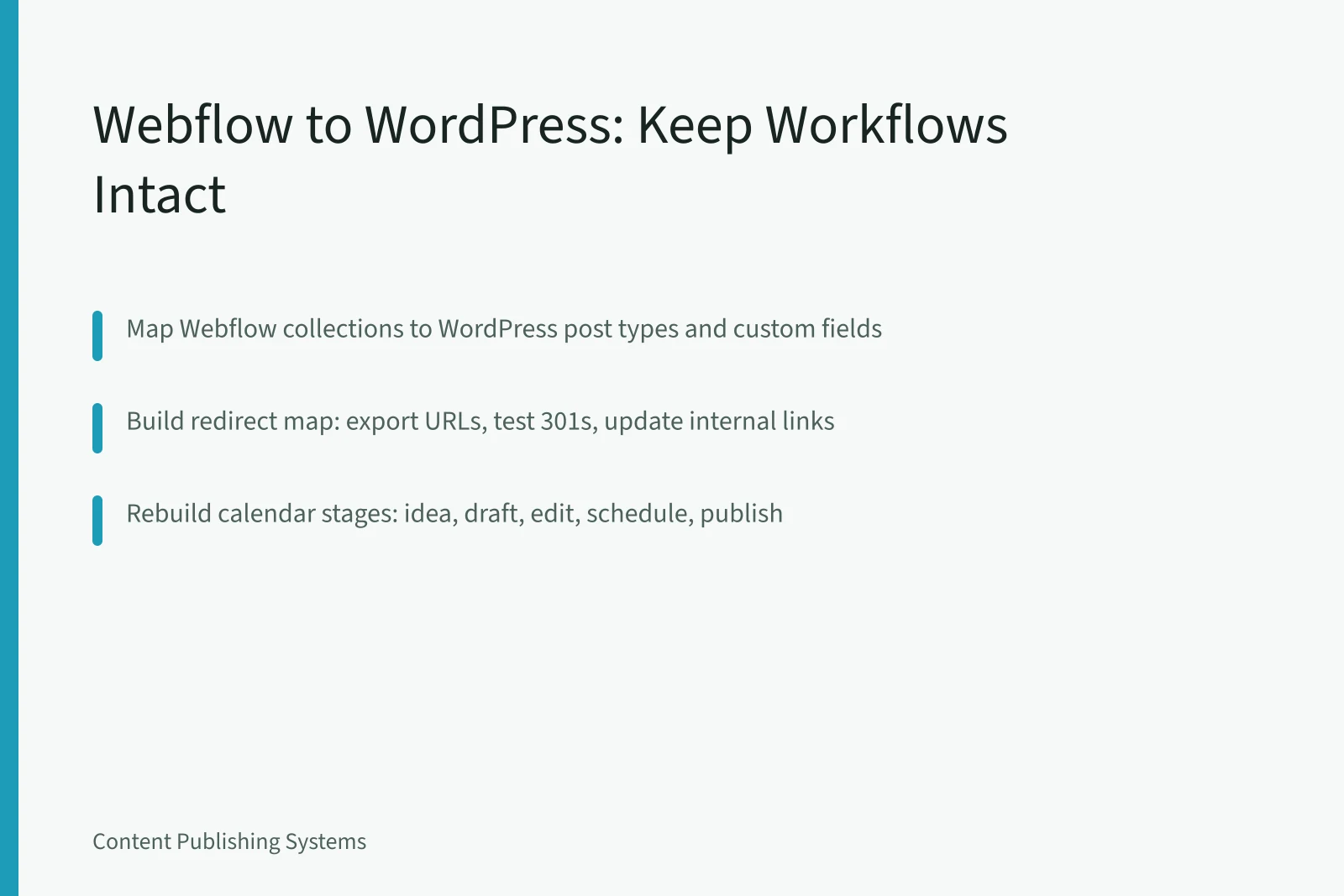
- Map Webflow collections to WordPress post types and custom fields before moving any content.
- Preserve URLs with a redirect map, then rebuild the editorial calendar in WordPress using plugins or external tools.
- Audit content for compliance gaps during migration, especially sponsored or health-related posts.
- Compare Webflow vs WordPress for content teams to decide on editorial control and data hosting before you start.
- Plan capacity and priorities with a content planning guide so the new calendar survives the first month.
Map Webflow Collections to WordPress Fields
When you migrate from Webflow to WordPress, the first job is field mapping. Webflow's visual development and CMS capabilities mean collections behave differently from WordPress posts. Webflow CMS collections often have rich text fields, reference fields, and multi-reference fields. WordPress stores similar data as post meta, taxonomies, or custom tables. You need a one-to-one list.
Webflow Fields to WordPress
Webflow field
- Title
- Plain text
- Body
- Rich text
- Author
- Reference
- Tags
- Multi-reference
Webflow type
- Title
- Post title
- Body
- Post content
- Author
- User or taxonomy
- Tags
- Tags taxonomy
WordPress destination
- Title
- Body
- Author
- Tags
Before you map fields, compare the two platforms on editorial control and data hosting. The Webflow vs WordPress for content teams comparison breaks down USD costs and editorial control.
Use a spreadsheet with columns for Webflow collection, field name, field type, WordPress destination, and notes. For each reference field, decide whether it becomes a WordPress category, a relationship field from a plugin, or a custom taxonomy. This step prevents data loss.
For multi-reference fields, consider a WordPress taxonomy or a relationship field from a plugin like Advanced Custom Fields.
A table helps.
| Webflow field | Webflow type | WordPress destination |
|---|---|---|
| Title | Plain text | Post title |
| Body | Rich text | Post content |
| Author | Reference | User or custom taxonomy |
| Tags | Multi-reference | Tags taxonomy |
Redirects and URL Preservation
Webflow and WordPress handle URLs differently. Webflow often uses clean slugs under a collection path. WordPress permalinks can be set to match. You need a redirect map before launch.
Redirect Map Workflow
- Export Webflow and WordPress URLs
- Test each old URL with 301
- Update internal links to avoid chains
- Submit new sitemap to Search Console
A redirect map is a spreadsheet with old URL, new URL, and redirect type. Check that no URL returns a 404. Also update canonical tags and internal links in your content to point to the new URLs.
Rebuilding the Editorial Calendar
After migration, the content calendar needs a new home. WordPress scheduling uses the built-in future date, but your team may rely on project management software for briefs and approvals. Rebuild the calendar with the same stages: idea, draft, edit, schedule, publish.
A checklist helps:
- Confirm each author has a WordPress user role.
- Set up categories and tags to match your Webflow collections.
- Migrate scheduled posts with their original dates if possible.
- Test the publish workflow with a single post.
Use a project management tool with recurring tasks and a content calendar view. This keeps the workflow visible after migration.
Before you schedule a single deadline, build a content planning cycle that sets priorities and capacity. Read the content planning guide to align your new calendar with real capacity.
Plugin Lock-In and Content Audits
WordPress plugins can create lock-in just like Webflow's CMS. If you choose a page builder or a custom fields plugin, your content may depend on it. During migration, audit content for compliance gaps.
WordPress uses a plugin architecture and a posts table that changes how you rebuild scheduling. If your team uses a headless CMS, the migration is mostly about API fields, not templates.
A migration is not finished when the last post is imported. It is finished when the first new post is published on schedule.
A content audit should also check for outdated claims, broken links, and missing disclosures. The FTC publishes a native advertising guide and health products compliance guidance that can help.
Example: Migrating a 40-Post Collection
A team with 40 blog posts and 10 landing pages starts by exporting Webflow collections to CSV. They map each field to WordPress custom fields using Advanced Custom Fields. They set up 301 redirects for all old URLs. The first new post goes live one week after migration. The calendar moves to Asana with the same editorial stages.
The comparison page explains editorial control and plugin lock-in.